IlSquare-OAUth Zoom’s Documentation
- Installation - REQUIRED
- Login to your teacher account
- Visit profile section
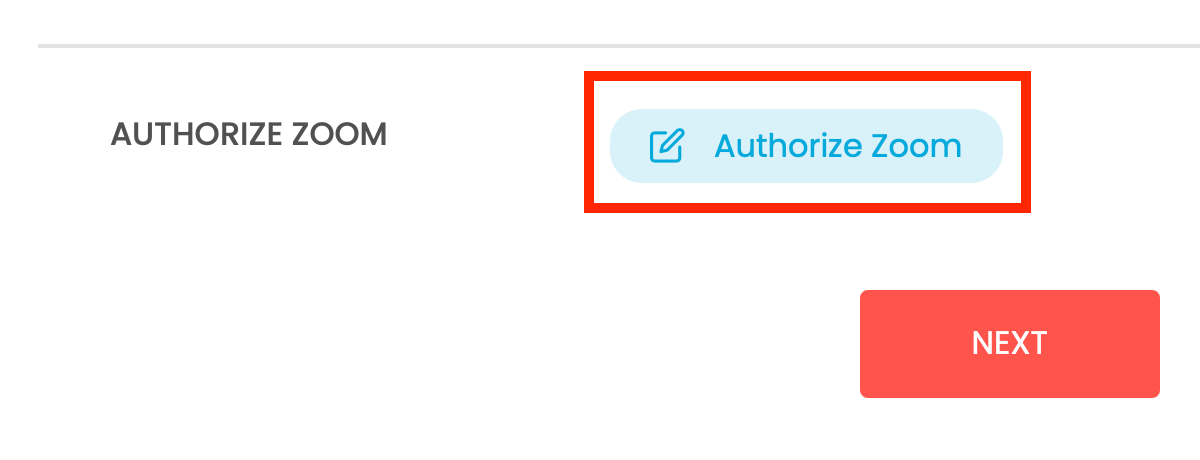
- At the bottom of the page you will see Authorize Zoom button
- Click on Authorize Zoom button
- You will be redirected to Zoom webpage to allow authorization to IlSquare-OAUth app
- Click Authorize
- You will be redirected back to ilmsquare website on successful authorization
- Link to the Installation Troubleshooting Guide
- Usage - REQUIRED
- Authorise Zoom
- This functionality is available in teachers profile account in the bottom.
- This will be used to authorise teachers zoom account with ilSquare Zoom app
- This gives ilmsquare rights to create a meeting in teachers Zoom account when a booking occurs.
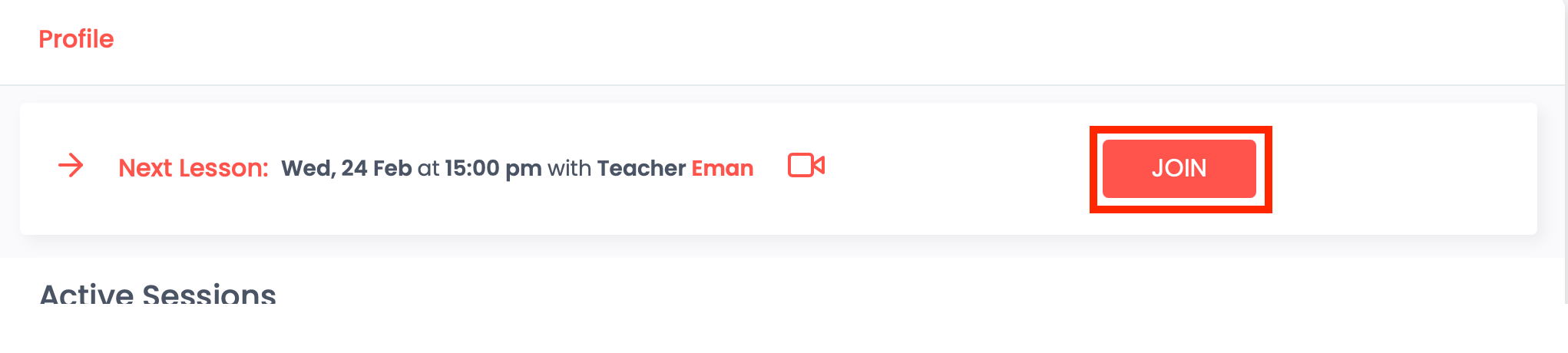
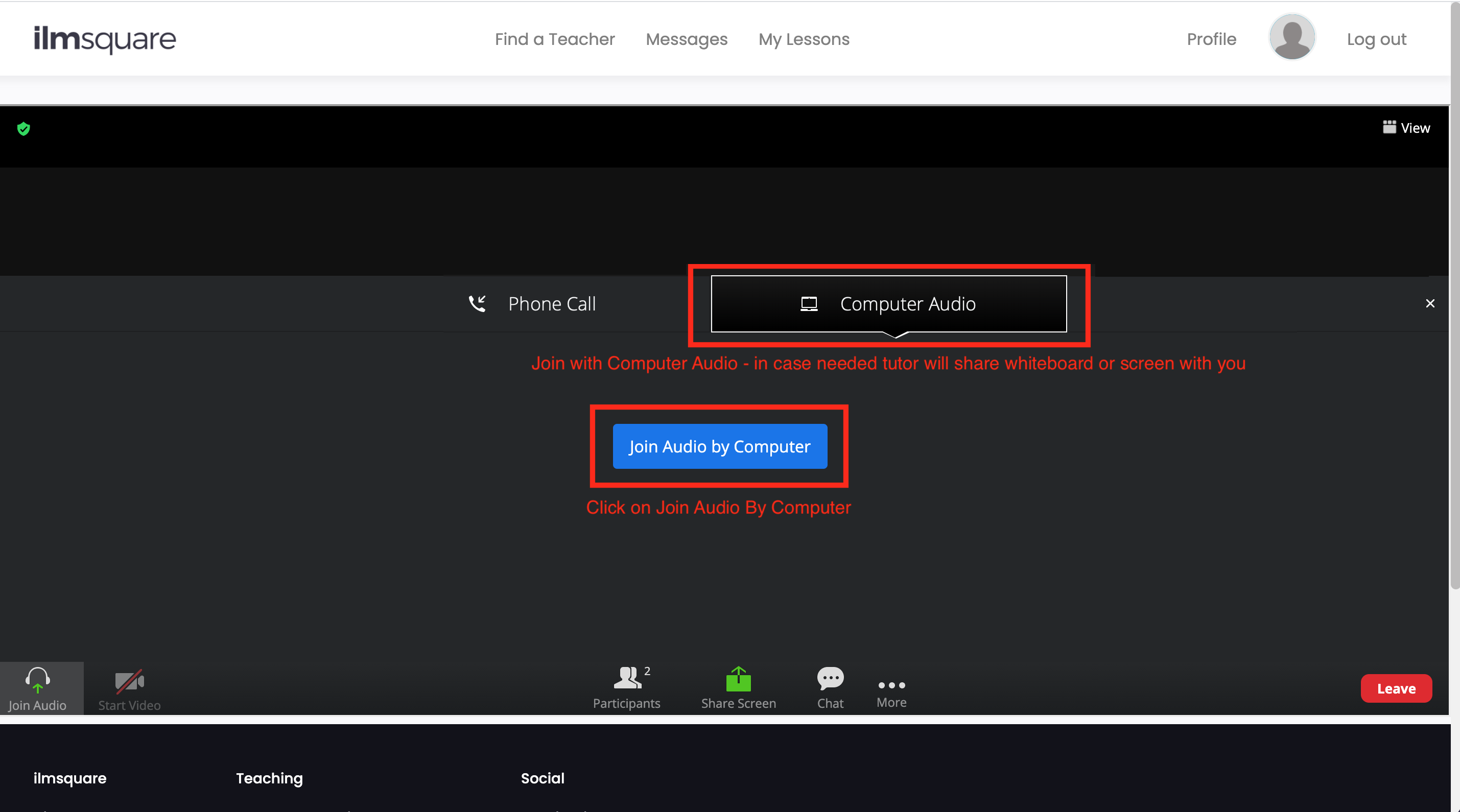
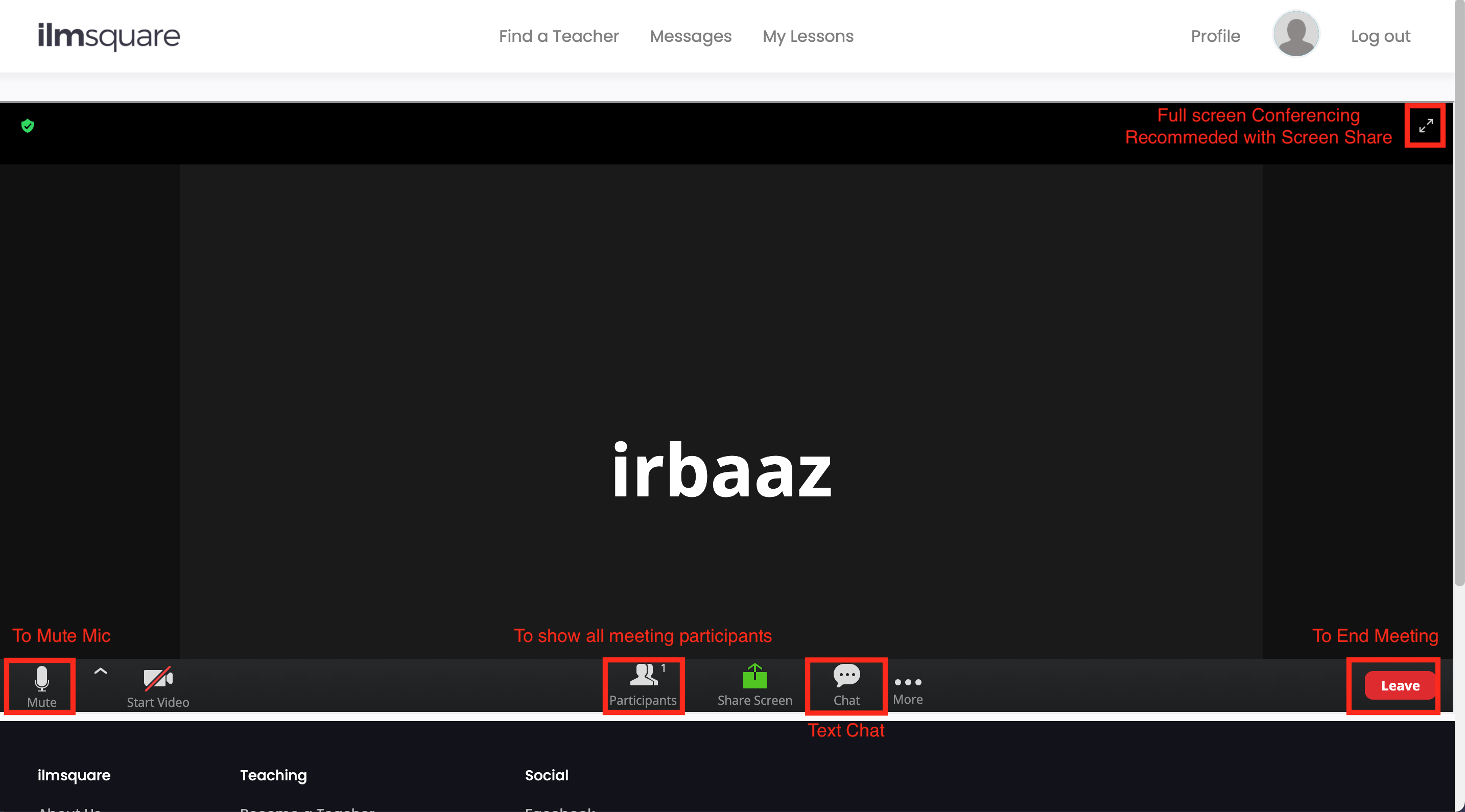
- Join Meeting
- This action button will be visible Under My Lessons page.
- From Teacher’s account this button will initiate meeting acting teacher as host.
- From Student’s account this will let student join meeting as guest.
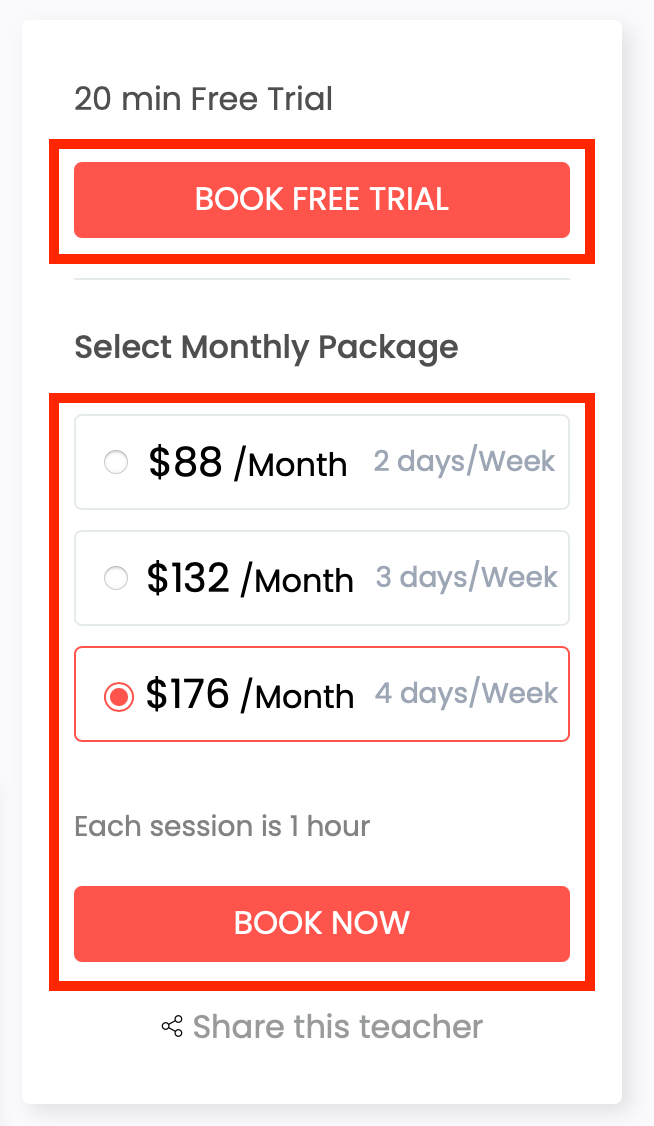
- Book Now Button:
- This will let student to book a teacher on specified time and date slot (Same can be chosen by student on booking popup).
- If free trial then 1 booking slot can only be selected and upon ‘Book Now’ meeting will be created of selected date and time.
- If Monthly package has been selected 2/3/4 days per week than user will be allowed to select 8/12/16 slots and payment will be asked on clicking ‘Book Now’ button. After successful completion of payment meeting will be created of selected date and time slots.
- Uninstallation - REQUIRED
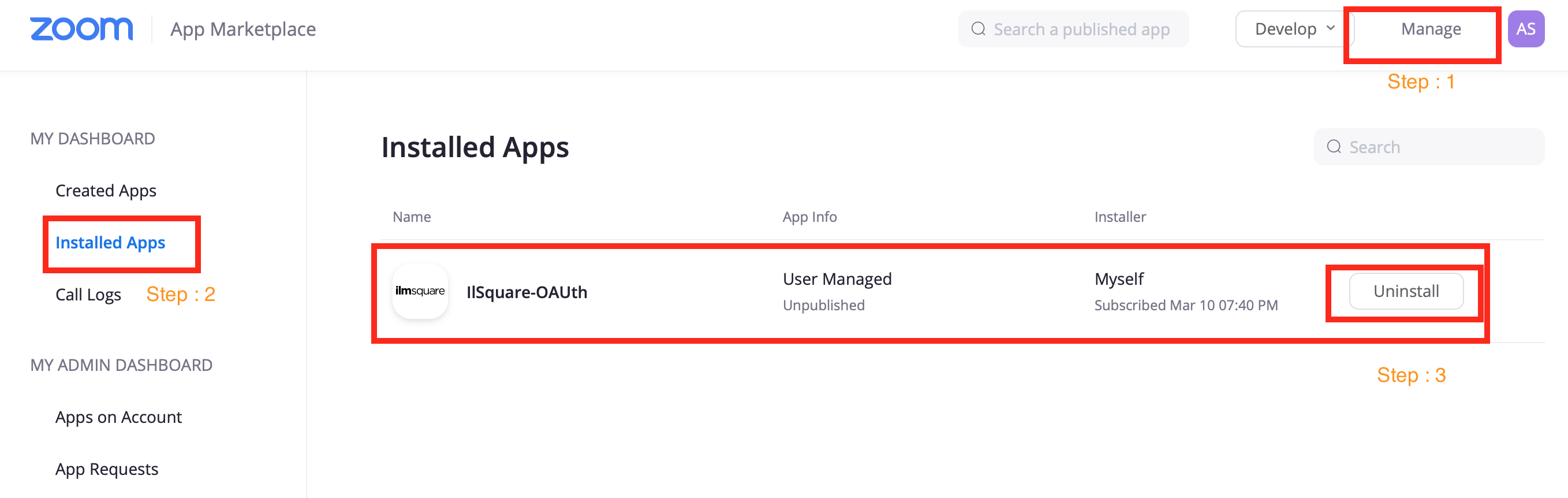
- Login to your Zoom Account and navigate to Zoom App Marketplace
- Click Manage -> Installed Apps or search for IlSquare-OAUth app
- Click IlSquare-OAUth app
- Click Uninstall
- Troubleshooting - OPTIONAL (but HIGHLY RECOMMENDED)
- Cannot see Authorize Zoom button under profile -> This will only be visible if your account is not Authorized with Zoom.
- Unable to initiate meeting -> Make sure you have Authorized the Zoom from profile section.
- FAQ - OPTIONAL
- What are the permission asked for Zoom Authorization :
- View your meeting : This permission is to read meetings id so can initiate it.
- View and manage your meetings : Permission to create new meetings on behalf of student under teacher’s Zoom account
- View your user information : Permission to read only user id so on deauthorizing we can identify user and delete all his informations from our website
- Contact Support - OPTIONAL
- Description of what customers can expect when engaging your support team, such as:
- Hours for Support Team 10AM to 7PM (GMT -5)(not available on Sat and Sun)
- 24 hour 1st Response SLA
- You can visit our contact page and can fill our contact form regarding your queries and issues.